Overview
As an Admin within Craft's OJL Tracker, you can add and invite users. Please note that you must invite users after adding them to the OJL Tracker, as they are not invited automatically. Below are the steps for adding learners, evaluators, instructors, and admins, as well as inviting them.
Video Walkthrough
Adding People
Step 1: First, navigate over to the People page via the left hand sidebar.
Step 2: Select Add People in the upper right hand corner. You will then have the option to add people individually and in bulk.
Add People in Bulk
Step 1: Click Add in Bulk
Step 2: Select “Download Template.”
Step 3: Complete and save as a .csv file. Note the following when entering each column's details:
- First Name (required)
- Middle Name (optional)
- Last Name (required)
- Email addresses (required)- must be valid and unique
- Secondary Email (optional)
- Role (required) - The following user roles are acceptable inputs(see User Roles and Permissions for details): LEARNER, EVALUATOR, INSTRUCTOR, FACILITATOR, ADMIN. This field is case sensitive so ensure you are using caps lock for the Role column.
- Date of Birth (optional)
- Mobile Phone Number (optional)
- Address Line 1 (optional)
- Address Line 2 (optional)
- City (optional)
- State (optional)
- Zipcode (optional)
- External ID (can be left blank)
Step 4: Select “Choose a file” to upload the file.
If all users are successfully created, you will receive a success message.
CSV upload errors will be displayed along with an explanation of how to correct them. You have the option of resubmitting the csv after correcting the errors, or clicking directly into the cell with an error to correct the data in real time.
If you would like to not proceed with uploading a particular user, you can check the box next to their name, then select Options, then Delete Selected.
Step 5: When you are finished, select the blue Import button in the lower right corner.
Add a Person One at a Time
Step 1: Select "Add Individually".
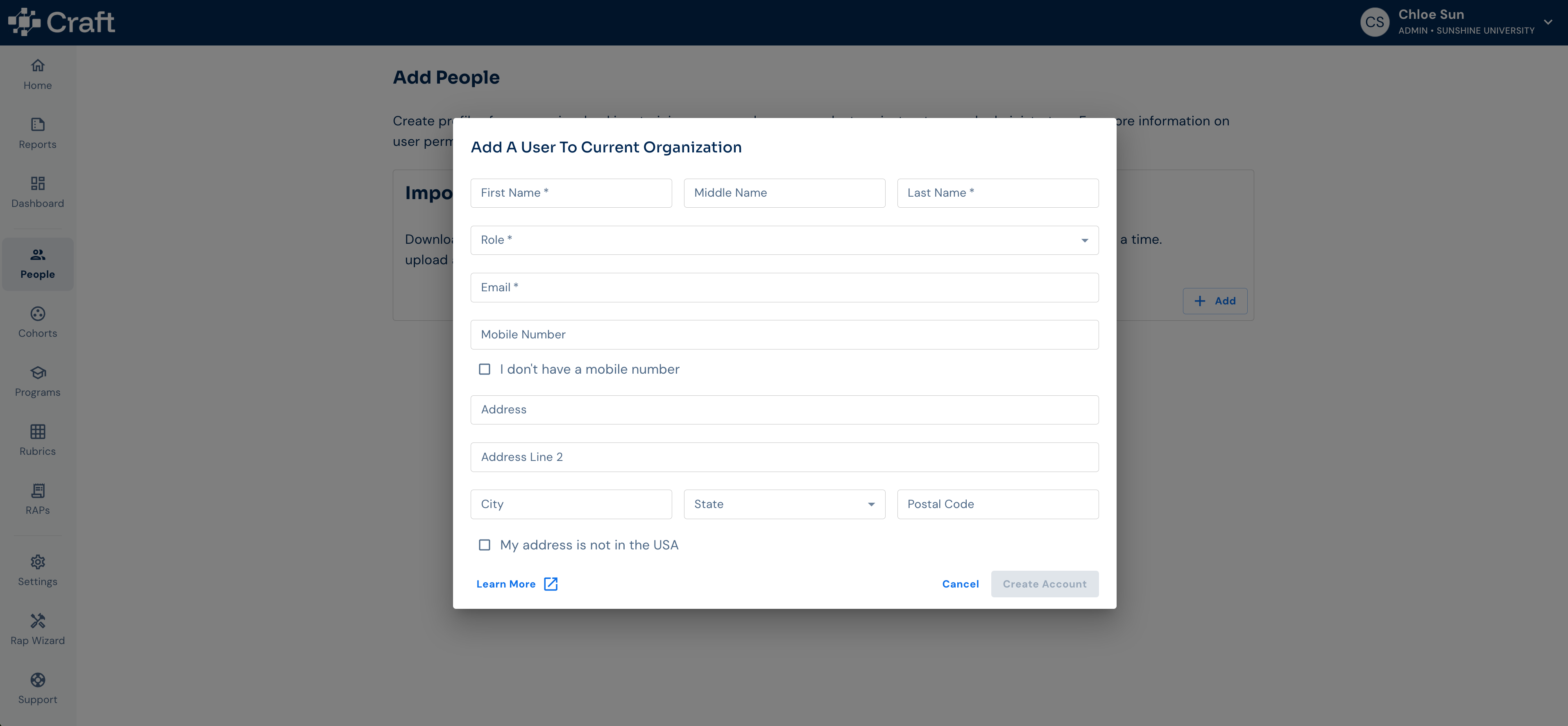
Step 2: On the following page, select “Add Person.” A dialogue box will appear.
Step 3: Complete the required fields within that dialogue box to create a new user. Please note, Address, Mobile Number, and Date of Birth are optional fields for creating a learner. Learners will be prompted to provide this information when logging into Craft for the first time.
Step 4: Select "Create Account."
 Inviting People
Once you've added people to the app, you will need to invite them to create their passwords. Users are not automatically sent an invite when added to the OJL Tracker.
Step 1: Go to the People page.
Step 2: Select the users you wish to invite by clicking the check box.
Step 3: Select Options in the upper left corner.
Step 4: Select Send Invite.
Step 5: Select Submit, or Cancel to start over.
Each person selected will receive an invitation to the OJL Tracker. After completing this step, they can access and log in to the app.
💡 TIP: Bookmark the link to Craft for quick access in the future.
Inviting a User from the Profile Page
Users can also be invited to the OJL Tracker directly from their profile page.
Step 1: Navigate to the profile of the user you wish to invite and scroll to the bottom.
Step 2: You’ll see a section labeled Status, which shows when the user was last invited and when they last logged in. To the right, click Resend Invite to send the invitation.
FAQ
Q: I'm getting an error message when I try to import - what do I do?
A: Check that all of the column headers match exactly as they are written in the template. Be sure every cell is populated accordingly. The system uses the email address as the unique identifier, so if an account with that email already exists, the import will be rejected. If you are still experiencing issues please reach out to our support team.
Q: Which fields are required to add people?
A: First Name, Last Name, Email Address, and Role are all required fields. Other fields are helpful for completing reporting forms and Mobile Phone Number can be used for text message notifications.
Q: Does everyone have to have an organization email address to participate? (e.g. @gmail.com or @company.com)
A: They do not! Whatever email address you add to the OJL Tracker will be what is used for signing in.
Q: Does the person I add automatically get invited to the OJL Tracker?
A: Nope! You can load people into the OJL Tracker and invite them whenever you are ready.
Q: I sent the invite email, but they didn't receive it. What do I do?
A: Some IT departments will filter out unfamiliar or external email addresses by default to protect their users from spam. We recommend asking all users to add the following email addresses to their email contacts to mark communications from Craft as "safe."
We also recommend whitelisting the Craft's URL, **https://app.craftedu.com/**
Then they can use the "Reset Password" link on the sign-in page to set up their password. Alternatively, they can also use the social sign-on options if they use Google for their email.